Notifications with Webhook using MS Teams
Updated: 2024-07-02
In this guide, we will walk you through the process of setting up notifications using webhooks with Microsoft Teams. This will allow you to send real-time updates to your Teams channel whenever specific events occur in your Zoho or ManageEngine ServiceDesk environment.
Configuring the Webhook in Microsoft Teams
To send notifications to Microsoft Teams, you need to create an incoming webhook in your desired Teams channel. Here’s how you can do that:
Your Microsoft Teams account must have the necessary permissions to create webhooks in the desired channel.
Your organization's Microsoft Teams administrator may need to enable webhooks for your account.
- Go to the channel where you want to add the webhook and click on the ellipsis (
...) next to the channel name. - Select "Connectors" from the dropdown menu.
- Search for "Incoming Webhook" and click "Configure".
- Provide a name for your webhook and optionally upload an image.
- Copy the webhook URL provided by Teams. This URL will be used in Zoho's webhook configuration.
Setting Up Webhooks in Zoho
-
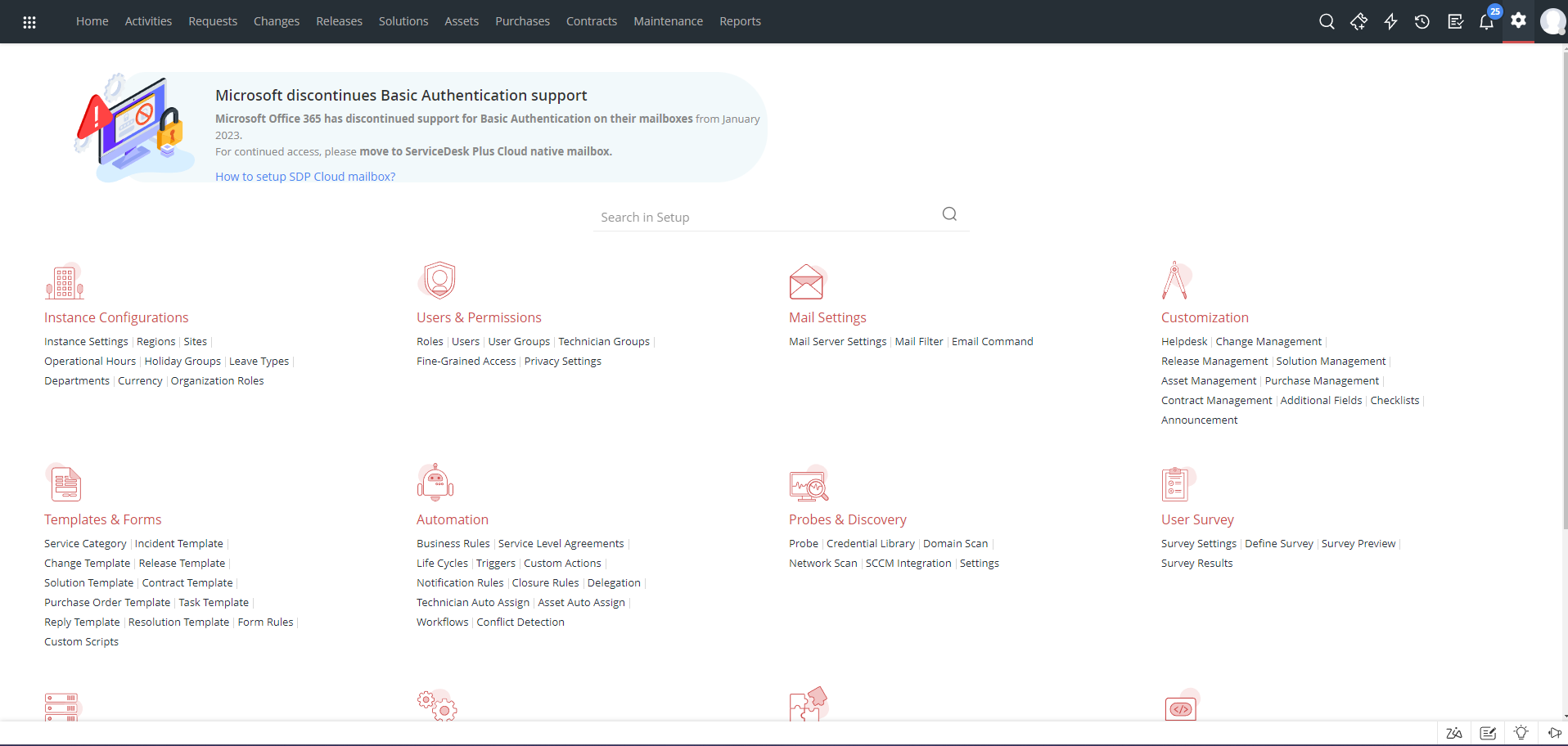
Navigate to the Zoho settings page.
-
Go to the Automation section.

-
Select the Triggers tab.
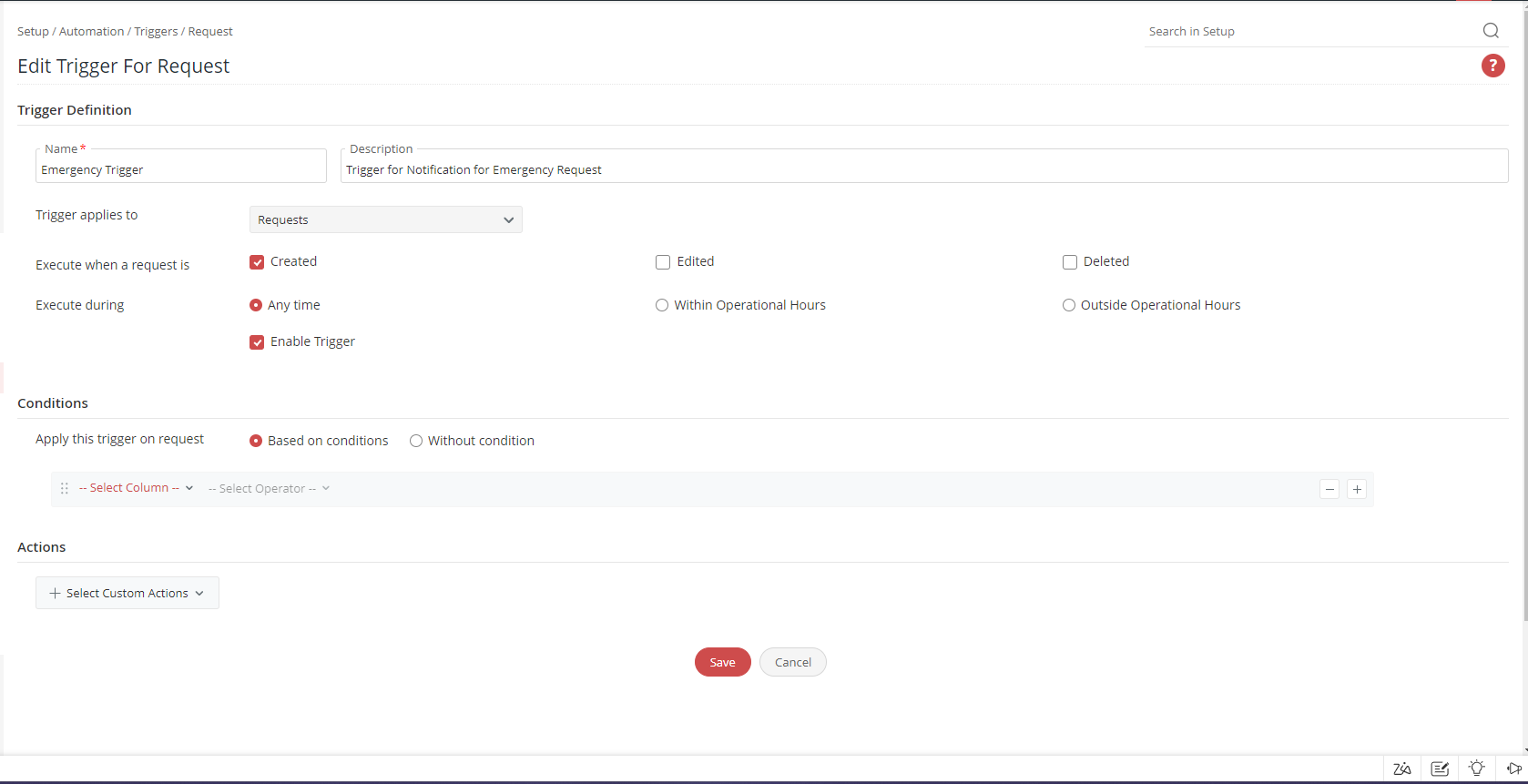
Then click on the "New Trigger" button.

-
Fill in your trigger details.
-
Click on the "Select Custom Action" button.

-
Choose the "Webhook" action type.
Fill in the webhook details, including the URL of your Microsoft Teams webhook endpoint.
infoBe sure to select
POSTas the method andJSONas the Message Body.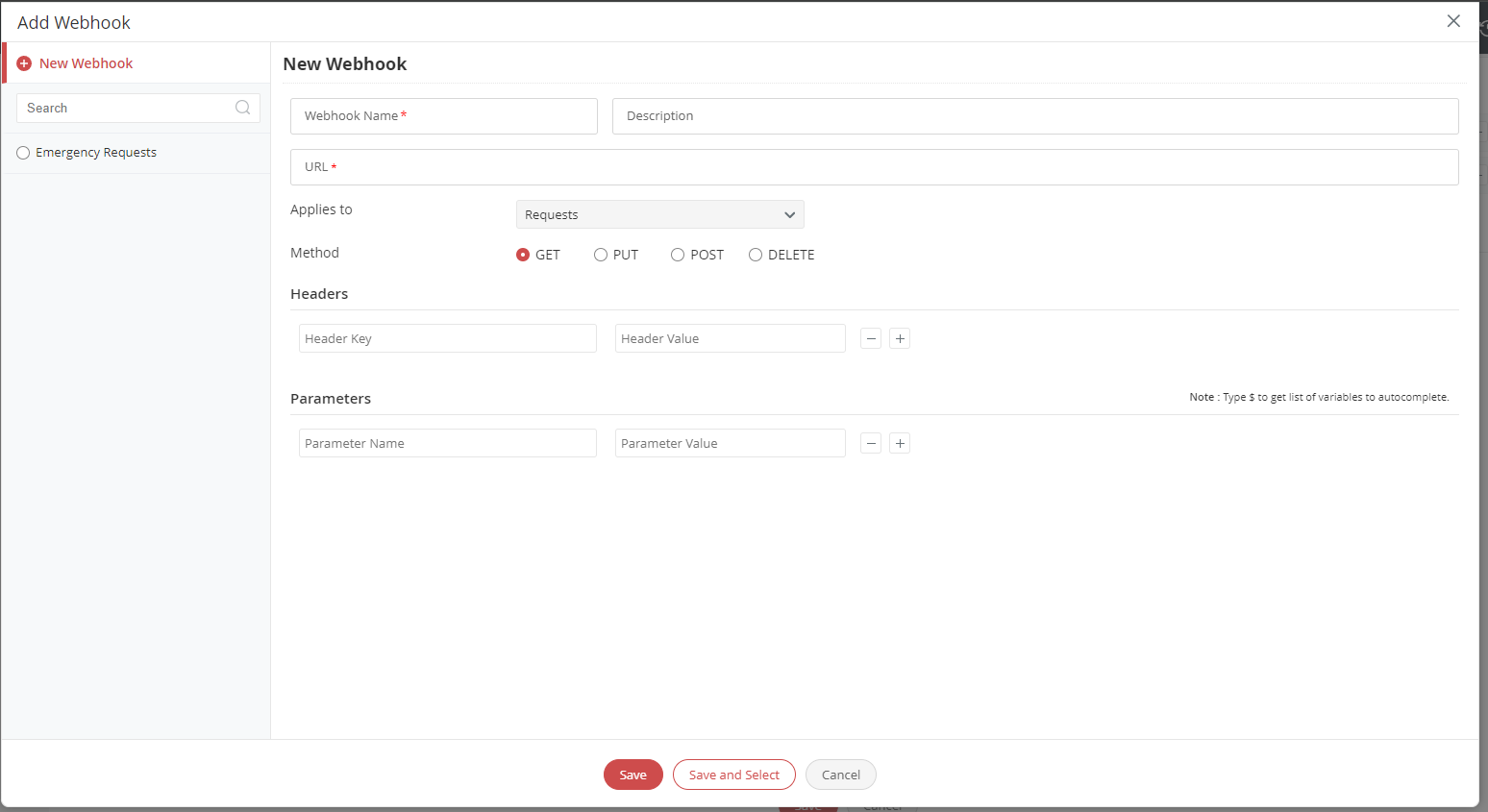
-
Message Body Payload
Below is a sample JSON payload that you can use to send a notification to Microsoft Teams when an emergency ticket is created:
infoThe
descriptionvariable is missing in this message body.
This means that the message body will not be displayed in the MS Teams Card.descriptionreturns raw HTML tags are not supported in the message body. You can make it work by using aMessageCardtype. You cannot mention users if usingMessageCardtype.- Adaptive Card
- Message Card
JSON - Message Body{
"type": "message",
"attachments": [
{
"summary": "Emergency Ticket - ${display_id} - ${subject}",
"contentType": "application/vnd.microsoft.card.adaptive",
"content": {
"$schema": "http://adaptivecards.io/schemas/adaptive-card.json",
"version": "1.2",
"msteams": {
"entities": [
{
"type": "mention",
"text": "<at>@Everyone</at>",
"mentioned": {
"id": "user@domain.com"
}
},
{
"type": "mention",
"text": "<at>@Everyone</at>",
"mentioned": {
"id": "user@domain.com"
}
},
{
"type": "mention",
"text": "<at>@Everyone</at>",
"mentioned": {
"id": "user@domain.com"
}
}
]
},
"body": [
{
"type": "TextBlock",
"text": "Ticket# ${display_id} - ${requester.name} created an emergency ticket",
"weight": "Bolder",
"size": "Medium"
},
{
"type": "TextBlock",
"text": "${category.name} - ${subcategory.name}: ${subject}",
"wrap": true
},
{
"type": "Container",
"items": [
{
"type": "TextBlock",
"text": "Request Information",
"weight": "Bolder",
"size": "Medium"
},
{
"type": "FactSet",
"facts": [
{
"title": "Category",
"value": "${category.name} - ${subcategory.name}"
},
{
"title": "Location",
"value": "${site.name} - ${department.name}"
},
{
"title": "Status",
"value": "${status.name}"
},
{
"title": "Last Updated By",
"value": "${last_updated_by.name}"
}
]
}
]
},
{
"type": "Container",
"items": [
{
"type": "TextBlock",
"text": "Additional Information",
"weight": "Bolder",
"size": "Medium"
},
{
"type": "FactSet",
"facts": [
{
"title": "Assigned to",
"value": "${technician.name}"
},
{
"title": "Created On",
"value": "${last_updated_time}"
},
{
"title": "Has Attachments?",
"value": "${has_attachments}"
},
{
"title": "Has Notes?",
"value": "${has_notes}"
}
]
}
]
},
{
"type": "Container",
"items": [
{
"type": "TextBlock",
"text": "<at>@Everyone</at>",
"wrap": true
}
]
}
],
"actions": [
{
"type": "Action.OpenUrl",
"title": "View Ticket",
"url": "https://_your_url_/app/_app_name_/ui/requests/${id}/details"
}
]
}
}
]
}JSON - Message Body{
"@type": "MessageCard",
"@context": "http://schema.org/extensions",
"summary": "Emergency Ticket - ${display_id} - ${subject}",
"title": "Emergency Ticket - ${display_id} - ${subject}",
"sections": [
{
"activityTitle": "Ticket# ${display_id} - ${requester.name} created an emergency ticket",
"activitySubtitle": "${subject} - ${description}",
"activityImage": "${requester.photo_url}"
},
{
"title": "Request Information",
"facts": [
{
"name": "Location",
"value": "${site.name} - ${department.name}"
},
{
"name": "Status",
"value": "${status.name}"
},
{
"name": "Last Updated By",
"value": "${last_updated_by.name}"
},
{
"name": "Category",
"value": "${category.name} - ${subcategory.name}"
}
]
},
{
"title": "Additional Information",
"facts": [
{
"name": "Assigned to",
"value": "${technician.name}"
},
{
"name": "Created On",
"value": "${last_updated_time}"
},
{
"name": "Has Attachments?",
"value": "${has_attachments}"
},
{
"name": "Has Notes?",
"value": "${has_notes}"
}
]
}
],
"potentialAction": [
{
"@type": "OpenUri",
"name": "View Ticket",
"targets": [
{
"os": "default",
"uri": "https://_your_url_/app/_app_name_/ui/requests/${id}/details"
}
]
}
]
}Save your trigger and test it by creating an emergency ticket in your ManageEngine ServiceDesk environment.
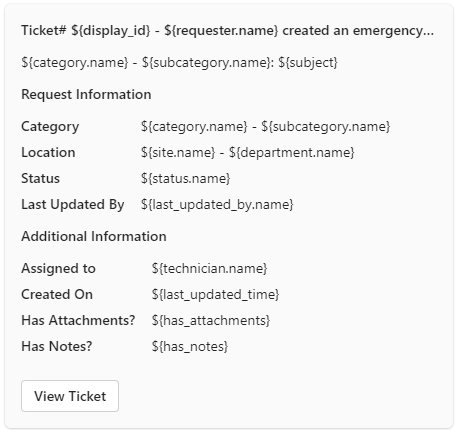
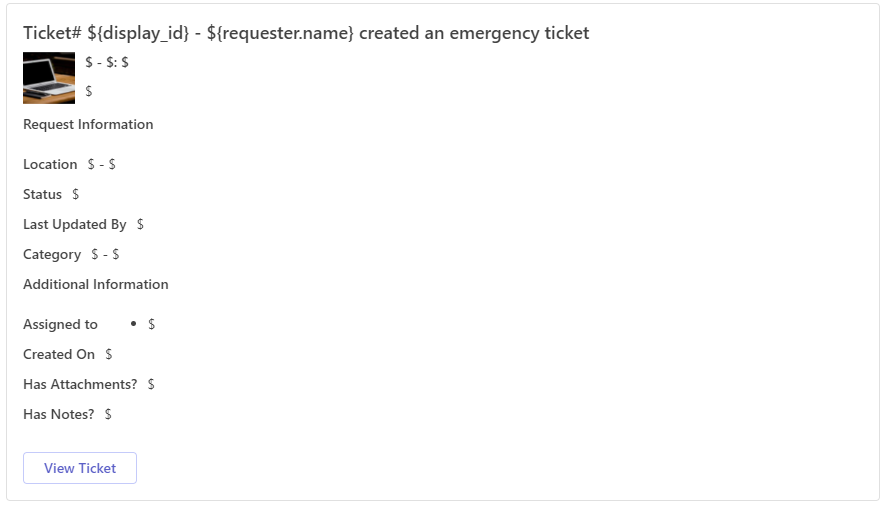
Sample Teams Message
- Adaptive Card
- Message Card